How to create Amazon Shipping Confirmations from One Stop Order Processing
This feature is available in Professional, Premium and Enterprise versions of One Stop Order Processing
NOTE: If you using Professional or a higher version you can automatically mark your orders as shipped (by ticking the 'When orders are shipped update Amazon' option in the Shipping options).
1 Select the AmazonShippingConfirmation view (if this doesn't appear in your list you import this by selecting View->Customize Current View and clicking on Import. Then select the C:\OSOP\Main\AmazonShippingConfirmation.mev file).
2 Amend any default information for all orders or individual orders (e.g. Shipping method). You can define a value for all orders using the Default value when you amend the Selected fields (when you Customize Current View). If you want a specific value for each order you can amend this in the Custom Values tab on each order.
3 Select the orders to export shipping information for.
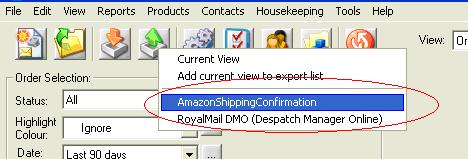
4 Press the Export Orders button ( ) and select AmazonShippingConfirmation.
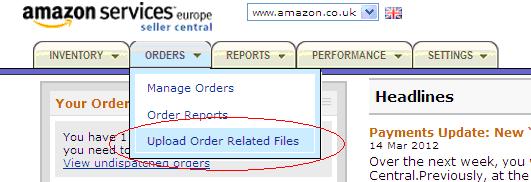
5 Logon to Amazon Seller Central and select Upload Order Related Files on the Orders menu.
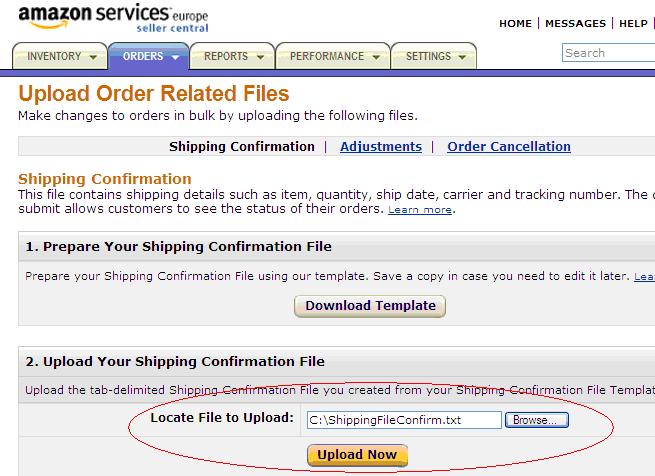
6 Select you file created by One Stop Order Processing and click on Upload Now.